Your email works. You send it, it leaves your outbox, nothing bounces. And it lands in a spam folder you cannot see, belonging to a customer who never tells you.
This is the most common quiet failure in small business technology, because every signal you have says everything is fine. There is no error. There is no bounce. There is just a reply that never comes.
Here is what is actually happening, and how to check it in about ten minutes.
The three records that decide your fate
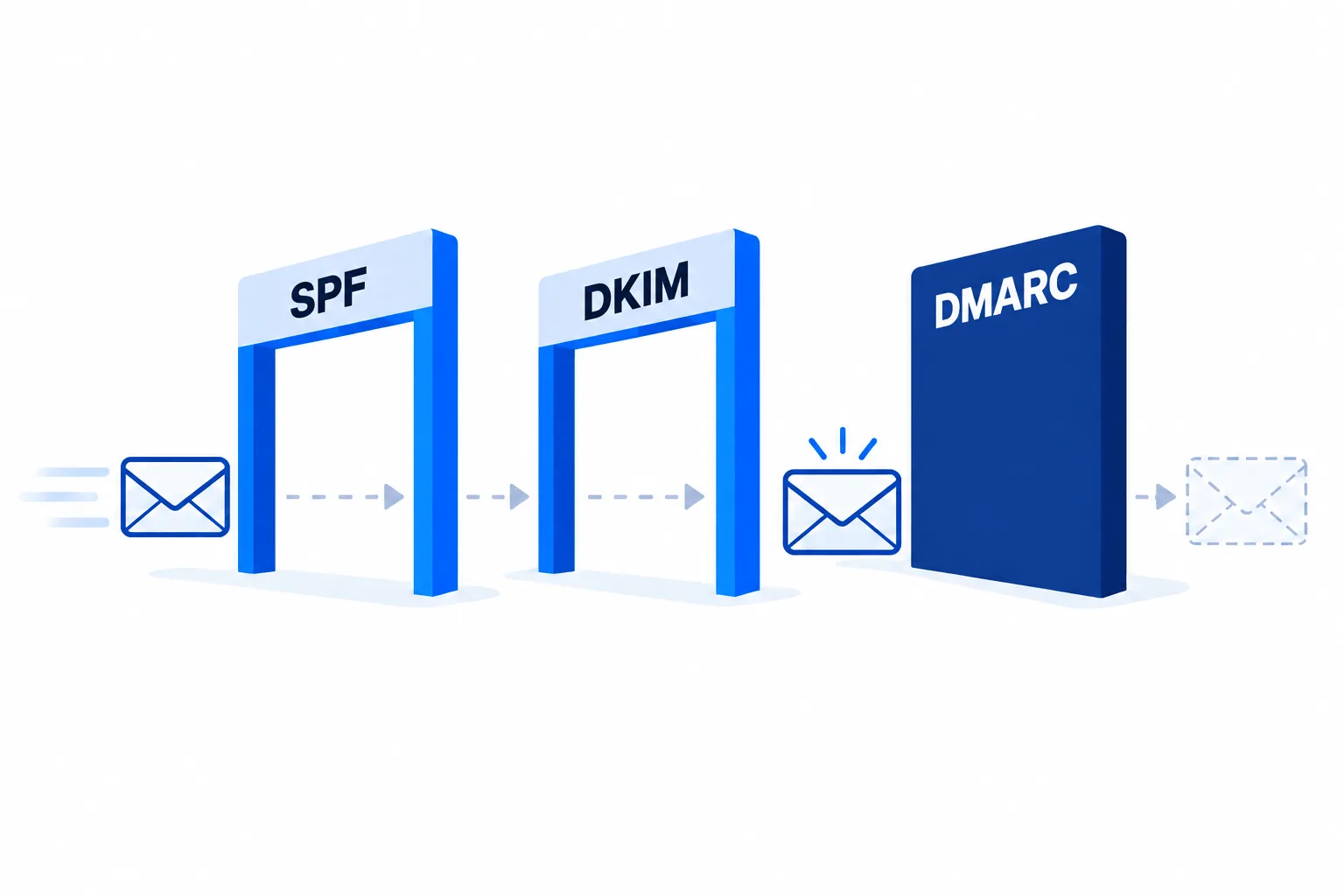
When a mail server receives a message claiming to be from your domain, it runs three checks. All three live in your DNS, not on your website and not in your email account.
SPF answers "is this server allowed to send as this domain?" It is a list of the servers permitted to send mail for you. If you send through Google Workspace, Microsoft 365, your web host, and a newsletter tool, all four need to be in that one record.
DKIM answers "was this message altered in transit?" Your sending server signs each message with a private key. The matching public key sits in your DNS. The receiver checks the signature.
DMARC answers "what should I do if the first two disagree with each other?" It is the policy, and it is the one almost nobody has.
You can pass SPF and still land in spam. That is the part that catches people out.
Alignment is the thing that actually breaks
This is the mechanism behind most mysterious spam-foldering, and it is worth understanding properly because no free checker will explain it to you.
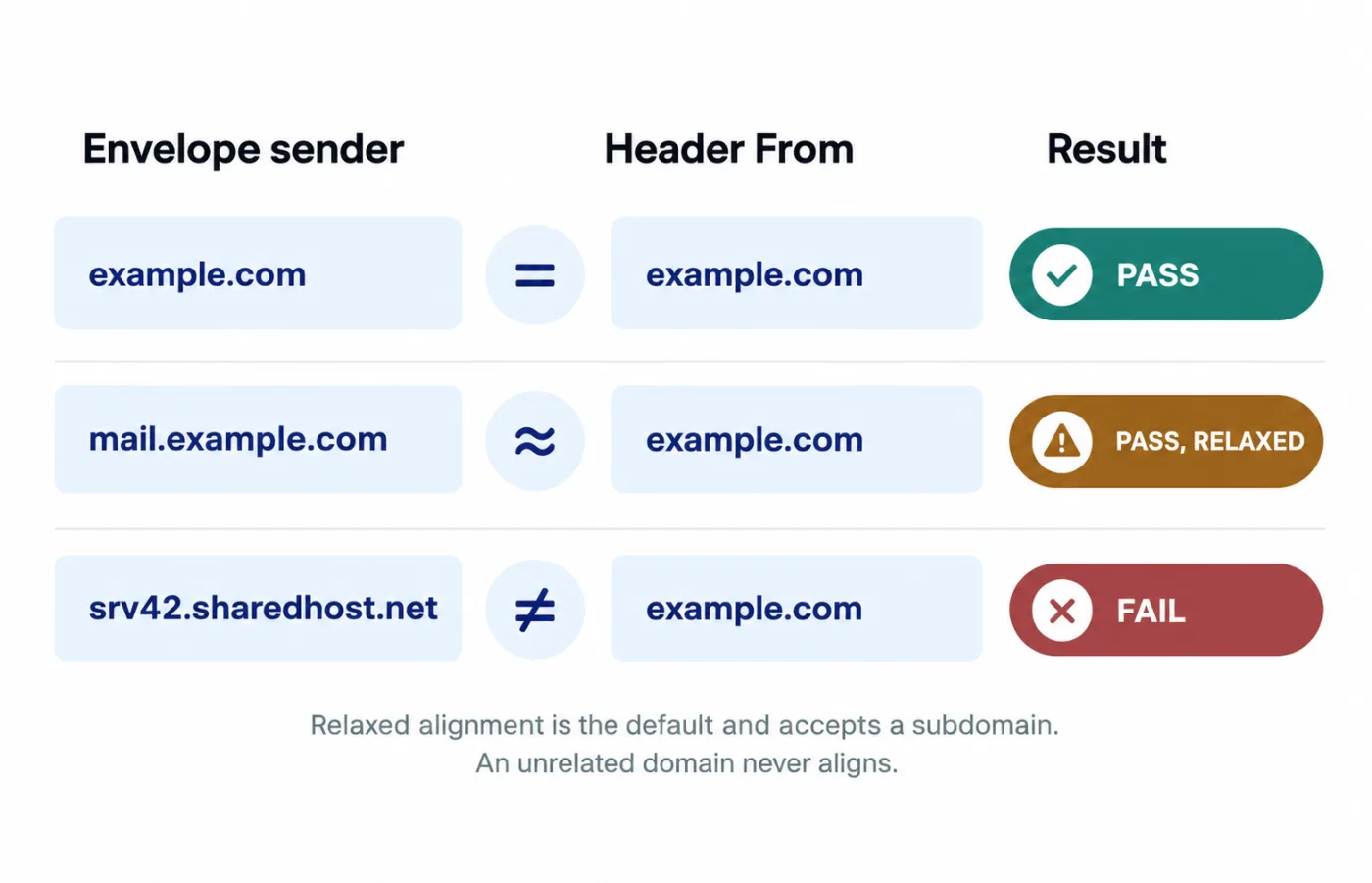
There are two "from" addresses on every email. There is the envelope sender, which the mail servers use and you never see, and there is the header From, which is the one displayed in the inbox. They do not have to match.
SPF checks the envelope sender. DKIM signs a domain. DMARC checks whether either of those matches the visible From address. That match is called alignment.
So picture a contact form on your website. It sends through your web host's relay, so the envelope sender is something like [email protected]. SPF passes, because that server is genuinely allowed to send as itself. But the form sets the From address to your own address so replies come back to you. Now the envelope says one domain, the visible From says another, and DMARC fails alignment.
Every free SPF checker will tell you the domain is configured correctly. Gmail will quietly quarantine the message anyway.
How to check your own domain in ten minutes
1. Look up your three records. Any DNS lookup tool will do. You are checking for:
- A TXT record on your domain starting
v=spf1 - A TXT record at
selector._domainkey.yourdomain.comstartingv=DKIM1 - A TXT record at
_dmarc.yourdomain.comstartingv=DMARC1
The DKIM selector varies by provider. Google Workspace uses google, many cPanel hosts use default, Microsoft uses selector1 and selector2. If you do not know yours, your email provider's admin panel will tell you.
2. Send yourself a test. Send one message from your business address to a personal Gmail account. Open it, and from the three-dot menu choose Show original.
3. Read the top three lines. You are looking for a block like this:
```
Authentication-Results: mx.google.com;
spf=pass smtp.mailfrom=yourdomain.com;
dkim=pass header.d=yourdomain.com;
dmarc=pass (p=NONE) header.from=yourdomain.com
```
Three passes is what you want. Anything else is your answer.
A dkim=permerror usually means the record is missing or malformed. A dmarc=fail with SPF and DKIM both passing is the alignment problem described above. A spf=softfail means a server is sending as you that your record does not list.
The trap nobody warns you about
Your DNS and your email can live at different companies, and usually do.
If your website moved hosts but your email stayed put, or your DNS moved to Cloudflare while your mailboxes sat with the original host, then your email provider's control panel cannot publish these records. It will still offer you a button that says it will set everything up, and it will still show you a deliverability page with red errors on it.
Those errors are not telling you what you think. The panel is reporting that it cannot see records it has no ability to write. The records have to be added by hand, wherever your DNS actually lives.
I have watched this specific confusion cost people weeks. The tool says it is broken, so they click the tool's fix button, which does nothing, so they conclude the problem is unfixable and move on.
Check which nameservers your domain uses. That is where the records go. Nowhere else.
Set the DMARC policy in stages
Once SPF and DKIM pass and align, add DMARC. Do not jump straight to enforcement.
Start with p=none. That means "watch, report, do not block." Add an address in the rua field so you receive the aggregate reports.
```
v=DMARC1; p=none; rua=mailto:[email protected]
```
Leave it there for two weeks and read what arrives. You will almost certainly discover a service sending as you that you had forgotten about: an old invoicing tool, a booking system, a plugin on your website.
Once the reports are clean, move to p=quarantine. Later, if you want, p=reject.
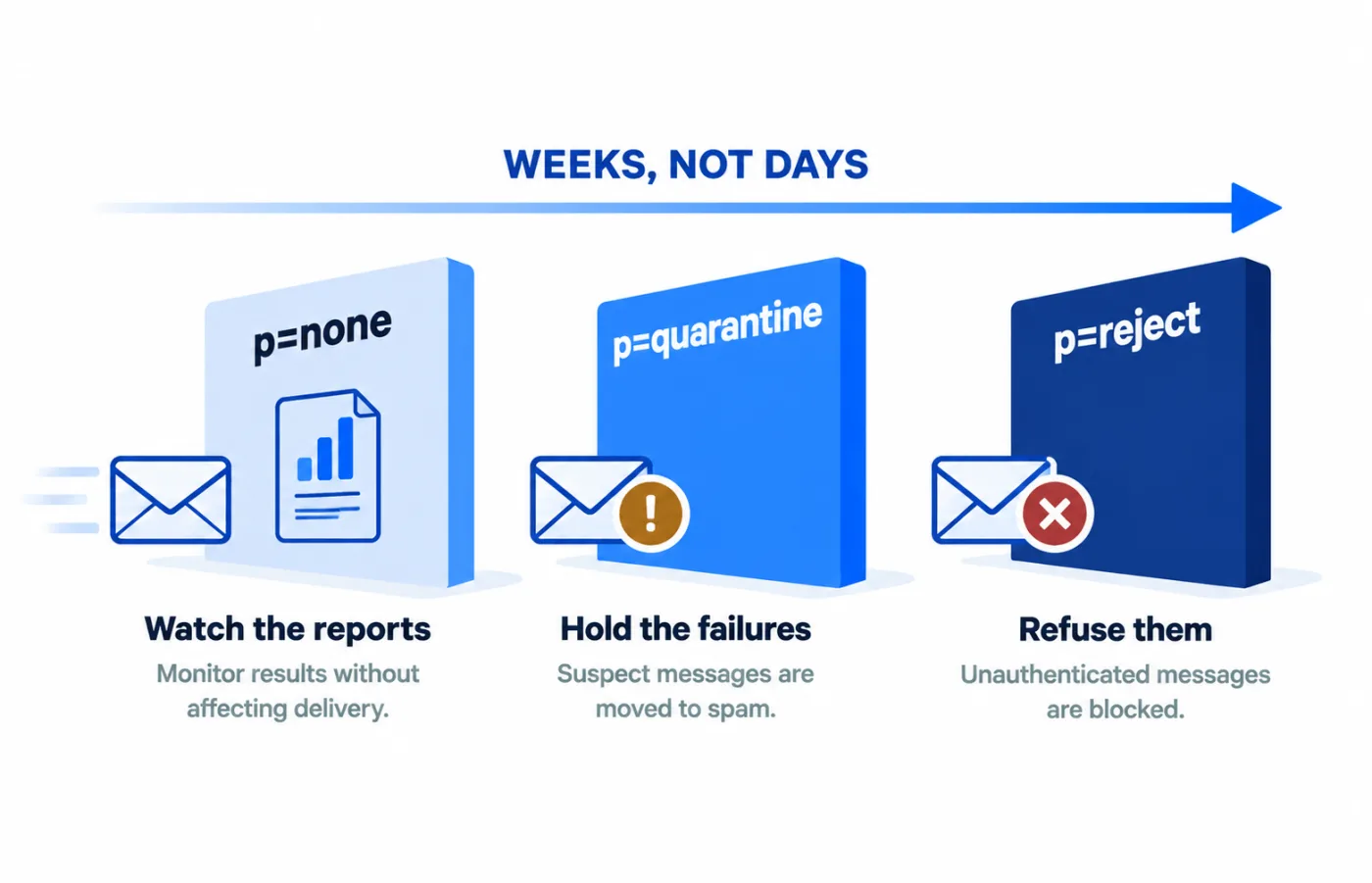
Going straight to p=reject before you know who is sending as you is how a business turns a silent delivery problem into a loud one.
What this does not fix
Authentication gets you the right to be delivered. It does not make people want your mail.
If you are sending a newsletter to a list you bought, or to addresses that have not opened anything in three years, perfect SPF, DKIM and DMARC will not save you. Reputation is a separate system, driven by complaints, engagement and bounce rates.
Authentication is the floor, not the ceiling. But it is a floor an enormous number of small businesses are standing below without knowing it.
The short version
- Check all three records exist.
- Send one test to Gmail and read the Authentication-Results header.
- If DNS and email live at different companies, publish the records where DNS actually is.
- Start DMARC at
p=none, read the reports, then tighten.
If you would rather have this done and verified rather than approximately attempted, Email Deliverability Setup is exactly this work, with a before-and-after test from a real inbox.